
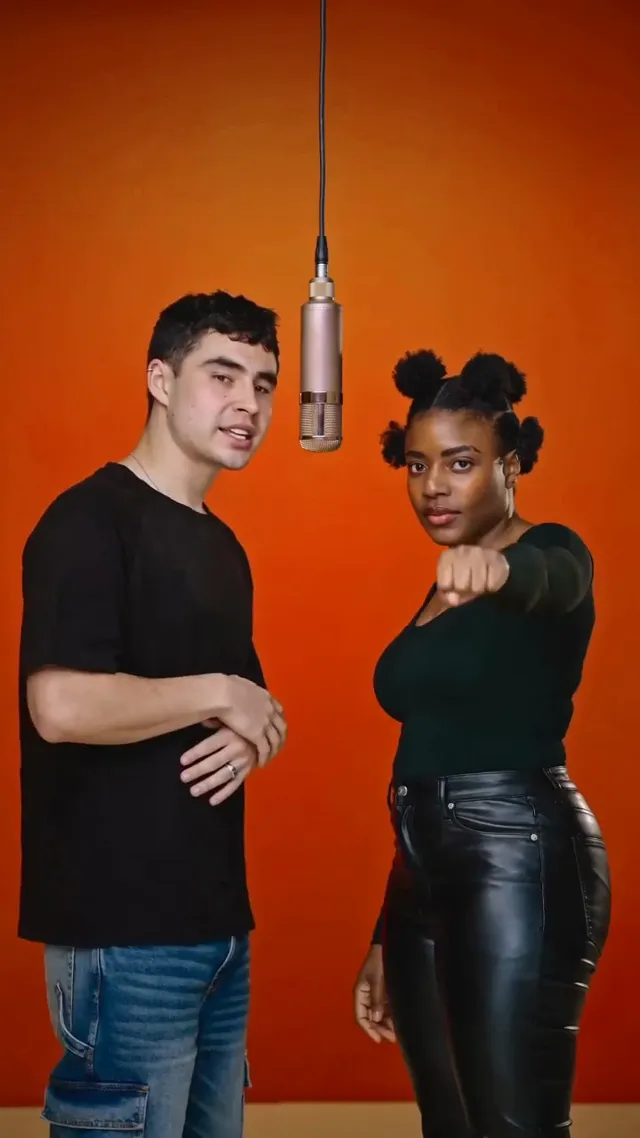
Hotel Lobby AI Video Template
Your duo. One mic. Put two portraits into the Hotel Lobby orange-studio scene, with a lead performer and a responding partner.
Existing style example. This video was not generated from your photos.Open example video
2 photos
Generate videoChoose your photos and A/B roles next. Video generation is currently limited to testing accounts.
The scene
Hotel Lobby is a two-person AI rap video template with an orange backdrop, a suspended microphone, and shared framing. Performer A leads on the left; performer B responds on the right. The example illustrates the scene and movement, not a result made from your photos.
The Hotel Lobby look
- An orange studio and a suspended microphone give the duo a shared stage.
- Two distinct roles shape the performance: a lead on the left and responses from the right.
- A saved scene and audio recipe guide the performance. You choose the people without writing a prompt.
From two portraits to a studio duet
- 1
Choose two portraits
Add one clear photo for each person. Separate photos work; you do not need a picture of the two people together.
- 2
Cast the left and right roles
Assign the lead performer to A and the responding performer to B. Review both faces and confirm permission to use the photos.
- 3
Generate your video
Sign in and submit when generation is available for your account. The saved recipe guides the scene and lip sync. Public generation is not open yet.
- 4
Find and review your duet
Open My videos to check your task. When a result is available, review both identities, the A/B positions, and the audio before downloading or sharing.
Two photos. Two roles.
Cast your duo.
Choose two separate portraits with one clearly visible face in each image. Use sharp photos with even lighting. A front-facing or slight three-quarter view works best. Keep the eyes, nose, and mouth visible. Avoid heavy filters, sunglasses, face coverings, and group shots. Role A is the lead performer on the left. Role B is the responding performer on the right. Assign each photo to its role slot; upload order does not set the roles. The photos can come from different places because the template supplies the shared studio. Use photos you have permission to use. Keep your originals if you need to restore a saved task on another device.
Left performer A
Person on the left, main vocal performer.
Example portraitRight performer B
Person on the right, two short responses.
Example portrait
Use JPEG, PNG, or WebP, up to 10 MiB per photo. Only add photos you have permission to use.
Read the rap video photo guideHotel Lobby questions
How many photos do I need, and who goes on each side?
Use two separate portraits, with one person in each image. Assign the lead performer to role A on the left. Assign the responding performer to role B on the right. The role slots control these assignments, regardless of which photo you upload first. Check both faces before you generate.
What will my Hotel Lobby video look like?
The template is built around a 10-second duet in an orange studio, with a hanging microphone, rhythmic gestures, and short responses between performers. Your photo setup shows the available output format. The example shows the intended style; faces, expressions, movement, and framing can vary in generated results.
Do I need a custom prompt, video recording, or voice recording?
No. Start with two still portraits. The saved template recipe supplies the scene, role instructions, reference materials, and audio. Your photos define the two performers; they do not record or clone your voices. Review the example to hear the template audio.
How do I generate a video and find it later?
Open Generate video to choose your photos and A/B roles. Sign in before submitting a generation. When generation is available for your account, confirm permission to use both photos and submit your setup. Open My videos to check the task, resume its setup, or play and download an available result. Generation is currently limited to testing accounts. Browser photo drafts stay on this device; generation tasks belong to your account. The task page shows its access deadline.